
Remixable software. Start from scratch, or from an app or game someone made. Change it live. Run it wherever you want. No code.
Lamp is a Mac app. Say what you'd like in your own words and it makes it: an app for your Mac, something in your menu bar, a widget, a game, a screen for the kitchen tablet or the TV, or an app for your iPhone or iPad. Each one opens straight away, with its chat beside it, and every change you ask for goes into it while you use it.
Lamp comes with apps to start from, on its desk under Starter apps:
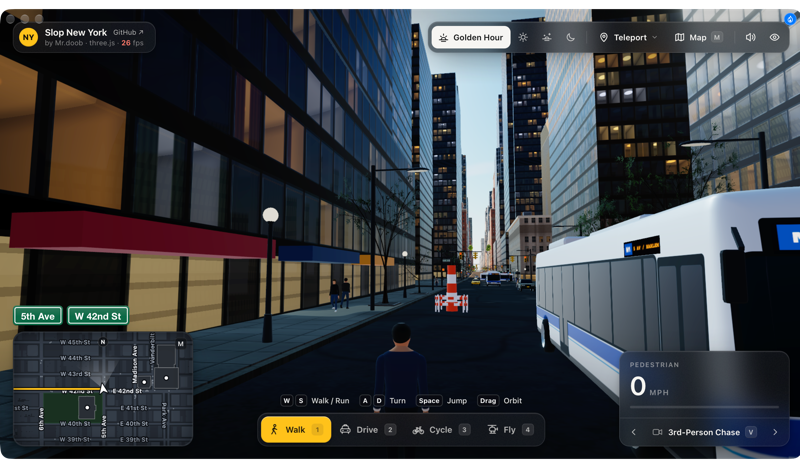 New York explore Manhattan on foot, by car, by bike or by helicopter (from Mr.doob's Slop New York) |
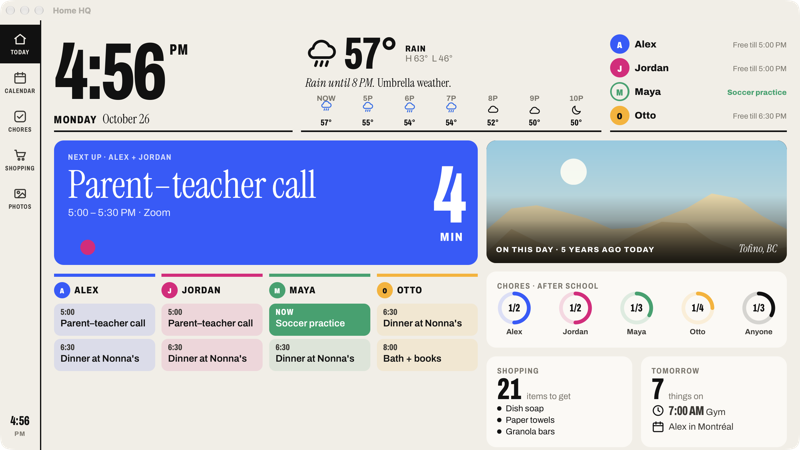 Home HQ the family's day, calendar, chores, shopping and photos, on the Mac, a tablet or the TV (from Wes Bos's family dashboard) |
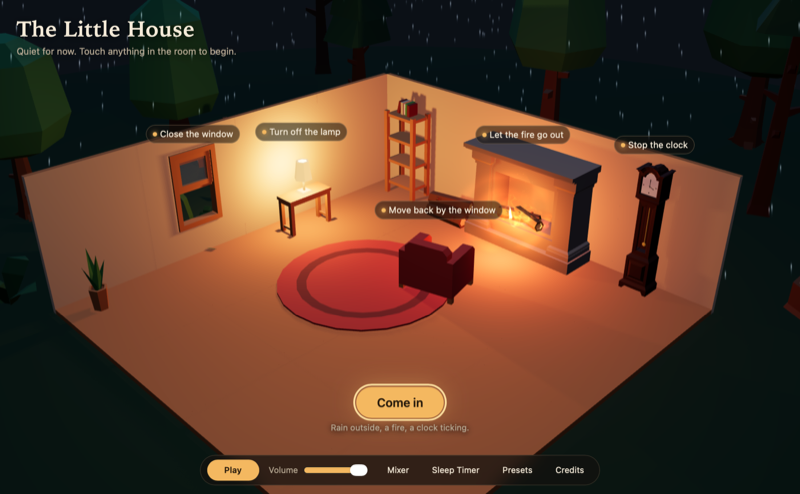 The Little House a cozy room on a rainy night, with a fire and a ticking clock to listen to (from remvze's Moodist) |
And Lamp's own Buzzer Beater, Universal Remote, Fireside, Local Crossings, Today, Disk Map, Hours, Wedding Words, Transcriber, Tidy Up and Site-to-App, and Bruno Bergher's Chores.
Change one and it's yours; the original stays under Starter apps. Every starter is a repository on GitHub (github.com/lampdotdev), and anything made with Lamp can be shared as a file, a link or a GitHub repository for someone else to remix.
An app can run on more than your Mac: an iPhone or iPad, a Samsung, LG or Roku TV, an Android phone, tablet or TV, an Xbox, and a photo frame, with phones on the same Wi‑Fi as game controllers. One app can be on several screens at once, sharing its data, so a family calendar set up on the Mac shows on the kitchen tablet and the TV.
Download Lamp and open it. It opens on your desk, where the starter apps are ready to use. The first time you ask for a change, Lamp has you sign in with Claude or ChatGPT (or add a key for Lamp's own agent).
| What | Why | Notes |
|---|---|---|
| macOS 14 (Sonoma) or later | Lamp and the apps it generates target macOS 14 | |
| Apple's Command Line Tools (Xcode 15 or later) | Swift compiler, the macOS SDK and git |
Free. The full Xcode app is not required for Mac apps, but works too. With Xcode 26, icons get native Liquid Glass rendering on macOS 26. |
| Xcode (only for iPhone and iPad apps) | The iOS SDK and simulators, and signing for your own phone | Free in the App Store. Lamp checks for it, and for the iOS simulator, when you send the first request for an iPhone or iPad app, and says what's missing. |
| An AI to build with | Writes the apps | Claude Code or ChatGPT Codex with your subscription, an OpenRouter key, or a model running on your Mac. See Choosing the AI. |
| An OpenRouter key (optional) | The best image models, icon artwork, decisions (Jev) and the fast in-app AI models | Without one, apps' text AI uses whatever builds them (a model on your Mac, or your Claude Code or ChatGPT Codex sign-in) |
Nothing else needs installing. The coding agent (pi) is bundled inside Lamp.app, and llama.cpp's model server is fetched the first time a local model needs it; build.sh downloads pinned, checksum-verified copies of both (about 40 MB together). No Apple developer account is needed to build it. A build from source is Lamp Dev: a separate app from the Lamp you install, with its own icon, folders, apps and settings, signed only for your own Mac and never updating itself (release builds are signed and notarized with the team's Developer ID and update themselves). Every app Lamp builds is signed with a certificate Lamp makes on your Mac the first time, so an app keeps the permissions you give it across rebuilds.
Get the latest signed, notarized build from lamp.dev (every release is also on GitHub Releases): open the DMG and drag Lamp to Applications. To get every change as soon as it's merged, install Lamp Nightly from the nightly pre-release there: a separate app, signed and notarized the same way, built from every change merged to main, that updates itself and lives beside Lamp without touching it. To cut a release, see RELEASING.md.
-
Install the Command Line Tools (skip this if you already have Xcode, or if
xcode-select -pprints a path). You need them to build Lamp from source. People who get a pre-builtLamp.appdon't, because Lamp's welcome screen installs them.xcode-select --install
macOS shows an installer window, which takes a few minutes. Afterwards,
swift --versionshould print Swift 5.9 or newer. -
Clone and build:
git clone https://github.com/lampdotdev/Lamp.git ~/Code/roo/Forge
cd ~/Code/roo/Forge
./build.sh
open "build/Lamp Dev.app"
The first build takes about a minute. It also creates a self-signed Lamp App Signing certificate in Lamp's own keychain,
~/Library/Application Support/Lamp/Signing(seescripts/signing-identity.sh). That gives every build the same signature. Lamp's keychain has a password Lamp generated and keeps beside it, so signing never asks for keychain access the way the login keychain does. It's only used to sign Lamp on your Mac. It producesbuild/Lamp Dev.app: the development build, a separate app from the Lamp you install (its own icon, folders, apps and settings), so you can keep both.scripts/dev-data.shcopies your apps, keys and settings from the installed Lamp into it. -
Finish setup in the app. The first time you ask for a change, Lamp asks for anything missing:
- App-building tools: if the Command Line Tools are missing, Lamp opens Apple's installer (click Install, then Agree). It then checks every few seconds and carries on by itself when they're installed, so there's no button to press afterwards.
- An OpenRouter key: paste one from openrouter.ai/keys. Lamp checks it with OpenRouter before saving, so a mistyped key or an account with no credit shows up straight away. One key covers building and everything AI inside apps. Under Use something you already have instead, you can pick Claude Code or ChatGPT Codex (Lamp uses the copy already on your Mac, or downloads its own, and you sign in with your Claude or ChatGPT subscription if you haven't already), A model on this Mac…, or Other providers…. Keys are stored per provider. Releases signed with an Apple Developer ID keep them in your login Keychain. Local builds have no Team ID, and macOS would ask for Keychain access again after every rebuild, so they keep them in
~/Library/Application Support/Lamp/keys.json, readable only by your user account.
You can change the key and models later in Lamp → Settings (⌘,).
- The desk is Lamp's window: your apps under Yours, and the starter apps below under Starter apps, which you can fold away. Click a column's name to sort; the side panel shows the picked app, with Remix it to change it. Your Devices down the side lists what Lamp can make things for (this Mac, your phones, TVs, Xbox, speakers) and finds them on your Wi‑Fi when you ask it to.
- Make a wish in the box at the top, by typing or with the microphone. Not sure? asks a few questions about your days and writes it with you. Lamp asks a question first only when the answer would change what it makes; otherwise it fills in the rest, names it, designs its icon, makes it and opens it.
- Change an app while you use it. The chat sits beside the app (click the wand at its top right, or Customize with Lamp (⇧⌘E) in the app's menu). A change goes into the open app without restarting it where it can: games take most changes while you play. Reload puts a change in everywhere the app is open. A change goes in only once Lamp says it's whole, so a half-made one doesn't land on what you're doing, and Lamp checks its work in the window you see.
- Remix changes the app itself. Undo and Versions take changes back; Duplicate… makes a separate copy; for a starter, Start Over goes back to the original and starts its chat over. When Lamp ships a newer starter, your copy offers to bring it in, keeping your changes.
- You can keep typing while Lamp works: messages wait in the chat and go out together as the next change. The pencil beside a message you sent takes it back into the box to change and send again. Stop cancels a change.
- Attach screenshots, mockups, logos, data files or documents with the paperclip, by dropping them on the chat, or by
pasting. When the app should use one (a logo, a data file), the agent copies it into the app's
Assets/folder. - An app that lives somewhere you might not look (the menu bar, a desktop widget, the background) says where when it opens: a menu bar app drops its panel down, and its chat says where it is.
- Mac apps are real
.apps in~/Applications/Lamp Apps, so they show up in Spotlight and Launchpad and keep working without Lamp. Each records which Lamp built it, and Lamp rebuilds it when a newer Lamp opens it. - Help → Lamp Help (⌘/) is an offline guide to all of this. Help → Report a Bug… prepares a report to review before it's sent to the Lamp team through lamp.dev; it includes Lamp's version, macOS version, the engine and activity labels, never log text, keys, chat or app code. Website setup is in site/BUG_REPORTS.md.
- Usage counts go to PostHog while Lamp is alpha software, unless Send usage counts to the Lamp team is turned
off in Settings → Memory: each step of the welcome, and each new app from the request to its first run (
Sources/Lamp/Analytics.swiftlists every event). They carry fixed words only (a step, a kind of app, an engine, an outcome), never text, names, paths or keys, under a random id made on the Mac and with no person profile. Lamp Dev sends nothing;LAMP_ANALYTICS_LOG=1prints what it would send. - Apps are signed with Lamp's local certificate ("Lamp App Signing", made in Lamp's own keychain the first time and never shared), so permissions you give an app, such as Files and Folders or Screen Recording, survive changes. When an app's signature does change, Lamp clears its old entries in System Settings ▸ Privacy & Security and says in the chat that macOS needs the permission once more.
Click Share in the toolbar of an app's chat: its link is at the top to copy, once it has one, and AirDrop, Messages, Mail and More send the link, or the app's file before it has one. Right-click an app on the desk and choose Share… for the same. Copy App File (⇧⌘C) puts it on the clipboard, and Export… saves it. Make a Link… puts a page for it on lamp.dev that anyone can open to make their own with Lamp, with the app itself included if you tick it. Apps travel as small .lampapp files containing the app's code (Swift, and its widget's, if it has one; an Android app's Kotlin; a TV app's web pages and scripts), APP.md, icon.json, icon artwork and the app's own files from Assets/ (a logo, say). An app made of several apps travels whole, each of its other apps in its own folder. Your chat, its attachments, tokens, agent sessions and git history are never included.
Release Update on an app's link (Share, then the gear beside the link, or Make a Link…) can put it on your own GitHub account too: tick Also put on GitHub and the card shows what goes up and where, and asks whether the repository is public, whether to add an MIT license and whether its README shows the app's picture. What goes up is what the shared file holds, unpacked so the code reads there, with Lamp's build files so zsh build.sh makes the app on any Mac with Apple's tools, a README that leads with Open in Lamp (in a public repository, a link that opens a copy in Lamp, or gets Lamp first) and the ideas to try, and the credits of what it's based on. It uses GitHub's command-line tool, gh, and your sign-in there; nothing goes through Lamp's servers. After that, each Release Update updates it there too (Also update GitHub, ticked unless you untick it). Each time, the app as it is now goes up as a commit, with the release's what's new as its message and a GitHub release tagged with its version (v1, v2, …). The app's own git history and attachments stay on your Mac.
On a Mac without Lamp, an app Lamp built (copied over, or kept after Lamp was removed) still shows its wand. The chat beside it becomes a way into Lamp: three things to change, written by Lamp after the last change, and a box for your own words; Continue with Lamp opens the app's Share Link page, or lamp.dev, with the request, where Lamp is downloaded and the app waits for its first open. A game published as a web page offers the same under Remix… in its credit bar. An app built from its code on GitHub has no chat of its own yet, so its wand opens lamp.dev. Nothing leaves the Mac or the page until that button is pressed.
The recipient double-clicks the file, or uses File → Import Shared App… (⌘O); an app on GitHub opens with File → Open from GitHub… (⇧⌘O). Before anything is built, Lamp shows a review:
- A fixed checklist of what the code uses: shell commands, network, AppleScript, Keychain, SSH keys or browser data, deleting files, camera, screen capture, background items, runtime code loading, encoded blobs, and AI. This is plain text search, so comments in the code can't talk it out of anything.
- An AI review using the building model. It summarizes what the app does, what it can access and any concerns, with a low, medium or high risk rating. It's told to treat the code as untrusted and ignore any instructions in it.
High-risk apps default to Cancel. When imported, the shared code is rebuilt with Lamp's own Package.swift, build.sh and LampSupport.swift, so nothing in the file runs during the build. The app runs only when opened, and becomes a normal app the recipient can keep editing. The review is a guide, not a guarantee: only open apps from people you trust.
Say it's for your iPhone or iPad when you ask for a new app, or later ask for it to work on your phone: Lamp builds one SwiftUI app for both, tried in the simulator on your Mac (use Try On in the toolbar, or right-click the app, to switch between iPhone and iPad), which needs Xcode installed. It has the same icon and building blocks as a Mac app (saved data, AI, text from photos and documents, calendar, reminders, contacts, notifications), plus motion and the rest of what a phone has. The agent builds and opens it in the simulator, looks at the screen after each change, and taps, types, scrolls and swipes on it to try what it made (which needs Lamp allowed under System Settings → Privacy & Security → Accessibility; Lamp asks once).
With your Apple account signed in to Xcode, plug your phone in: Try On offers to pair it, then lists it. Press Play and Lamp builds the app for it, signs it with your account (the team is chosen in Settings → Building) and puts it there. The app's AI goes through Lamp while your Mac is reachable, and uses your OpenRouter key itself when it isn't (its models are chosen in Settings → Apps). iPhone and iPad apps can't be shared yet.
Say where you want it ("for the TV", "on my Xbox", "on the kitchen tablet"), or pick a device under Your Devices on the desk, and Lamp makes it for there:
- Samsung and LG TVs, Roku, Android phones, tablets and TVs, and the Xbox. The first time, a setup window walks you through each device's developer mode (Samsung's and LG's, Roku's, Android's debugging over a cable or Wi‑Fi, the Xbox's Dev Mode and Device Portal), with Lamp checking each step. Try On in an app's toolbar picks where it opens, and Play puts it there.
- Web apps are what an app is made as unless it needs something only a Mac or iPhone app has (the menu bar, a widget, Siri, Health): one page that fills whatever it's on, the Mac, an iPad, a TV or a frame (a family dashboard, a photo frame, a cozy room). An app on several screens keeps one set of data for all of them, and Lamp keeps a copy on the Mac, so a screen that opens on its own still gets it.
- Games are three.js or Phaser (or TypeScript), with free 3D models, art, sounds and music to use. Phones on the same Wi‑Fi join as controllers by scanning a code, on the Mac, an iPhone or iPad, a TV or the Xbox.
- Devices Lamp doesn't know yet (a speaker, a smart plug, a projector) can be taken on: Lamp finds them on your network when you ask, and the agent writes how to reach one, in a form Lamp checks and limits, never code it runs.
Lamp looks at your network only when you ask it to. What it finds stays on this Mac, except that it's told to the AI that builds your apps when that AI works on something for your devices (device names often include people's names); it's never put in an app or sent anywhere else.
Lamp → Settings (⌘,) → AI chooses what builds your apps:
- Lamp's built-in agent (pi) with either of these:
- An OpenRouter key. Pick any model from OpenRouter's list; it's searchable.
- On this Mac (local models). Native Mac AI in Settings → AI Providers lists every model Lamp can run. These include models already in the shared Hugging Face cache (
~/.cache/huggingface/hub) or in Local's folder, so models downloaded for Local show up without downloading again. Lamp's own downloads (a list sized to your Mac's memory, or any GGUF repo) go into that same cache, in the standardhuggingface_hublayout.- GGUF models run on llama.cpp's server (
127.0.0.1:47812, router mode, loading models on demand), which Lamp downloads the first time a GGUF model is downloaded or picked, checks for Lamp's own signature, and keeps in~/Library/Application Support/Lamp/llama. It reads them through a folder of symlinks (~/Library/Application Support/Lamp/Router), so nothing is copied. - MLX models (like the ones Local uses) run on
mlx_lm.server(127.0.0.1:47813) once mlx-lm is installed: Lamp installs it from Settings → AI Providers → Native Mac AI, with its own copy of uv if the Mac has none. - Servers start when needed and stop when Lamp quits.
- GGUF models run on llama.cpp's server (
- Claude Code or ChatGPT Codex, with a Claude or ChatGPT subscription. Lamp uses the copy already on the Mac (on your PATH or inside the Claude or ChatGPT app) with its sign-in, or else downloads and updates its own, so nothing else needs installing. It runs them with file editing allowed and the shell turned off (sandboxed, for Codex), and builds the app itself.
With pi, Lamp's rules go in the system prompt. Claude Code gets them through --append-system-prompt, and Codex as developer instructions. Attachments are passed natively where the tool supports it.
Local models are slower and much less capable than the best cloud models for whole apps; small ones can loop. Lamp stops an agent that repeats the same step 6 times, and pauses one that takes more than 150 steps in one turn on a model on this Mac (500 for Claude Code, Codex and cloud models), until you say to keep going; Stop cancels a turn at any time.
xcrun: error: invalid active developer path: the Command Line Tools are missing or broken after a macOS update. Runxcode-select --install.- Lamp says Apple's app-building tools are incomplete, or that Xcode can't build Mac apps: the tools Lamp builds with have no macOS SDK it can use. Click the button beside the notice (Reinstall…, Open Xcode or Open App Store); Lamp checks again by itself and builds once they work. If it says Lamp was opened with a macOS SDK that isn't on this Mac, Lamp was started with an
SDKROOTsetting: quit it and open it from Finder. - Builds fail with "You have not agreed to the Xcode license" (full Xcode only): run
sudo xcodebuild -license accept. - Builds fail with "plugin for module 'SwiftUIMacros' not found": the macOS 27 SDK needs a compiler plugin that only ships with full Xcode. With just the Command Line Tools, Lamp builds against the newest older SDK they include, so this only happens when there isn't one. Install Xcode, or an older Command Line Tools SDK.
Downloading pifails during./build.sh: GitHub must be reachable. The download is cached invendor/afterwards.- Build errors mentioning the SDK, with Xcode installed: point at it explicitly with
sudo xcode-select -s /Applications/Xcode.app. - Keychain asks "Lamp wants to access key dev.lamp.host": a build without an Apple signature is copying an OpenRouter key that a signed Lamp saved in the Keychain. Allow it once. Local builds don't use the Keychain after that.
- A local model won't start: check
~/Library/Logs/Lamp/llama-server.log(GGUF) ormlx-server.log(MLX). The model may need more memory than the Mac has; pick a smaller one. - Claude Code or Codex errors: Lamp shows their message. Make sure the tool works on its own in Terminal first: you're signed in, and it's up to date (an old Codex can't use new models).
- Apps can't use AI ("Couldn't reach Lamp"): Lamp must be running, and port
47811must be free (check withlsof -i :47811). - ⇧⌘E opens the wrong Lamp: you have more than one
Lamp.appon disk. Open the one you want once, or delete the old one. - Old icon in the Dock: run
killall Dock.
-
Agent loop: each message runs the chosen agent in the app's folder. It can read, search and edit files and read the web freely. Shell commands can need your approval (Settings → Building → "Ask before running commands"):
- Only when risky (default): routine commands run on their own and still show in the chat; the rest come to you with a plain description and a risk level from the in-app model, except a command no check flagged that the in-app model calls low or medium risk (work on the app itself: its files, what it fetches into its folder, its builds and tests), which runs. High risk is whatever reaches beyond the app. What's routine is decided the same way for every agent, and only about what the sandbox leaves open (where on disk a command reaches is macOS's to refuse, not Lamp's to judge): the decision model (Jev) answers a few narrow questions (how far the command reaches beyond the app: other apps, the Mac's software and settings, something registered with the Mac to run later, code loaded from outside the app, the network; whether it only reads; whether anything leaves the Mac; whether it reads a secret it can get at; whether it hides what it runs), and Lamp decides from the answers. Reading and working on files run on their own; a download runs when your request calls for it; anything a check flags, or the model is torn over, comes to you.
- Always: every command asks first.
- Never: commands run without asking.
Approvals show in the app's chat as a plain-English summary of what the command does and how risky it is (written by the in-app AI model), with the command itself under Show command, and Allow, Allow All This Turn and Deny. High-risk commands default to Deny and can't be allowed for the whole turn. Nothing runs until you answer, and Stop denies it. pi asks through Lamp's extension (
Resources/lamp-tools.ts), and Claude Code through aPreToolUsehook. Claude Code runs isolated from your own setup (--restricted --strict-mcp-config --disable-slash-commands): none of your hooks, permission rules, plugins, MCP servers or skills. Codex sends every shell command to Lamp through aPreToolUsehook and stays in its sandbox, writing only in the app's folder. It has no file tools of its own, so it reads and searches withread,ls,findandgrepfrom Lamp's MCP endpoint instead of its shell: they work like the built-in agent's and follow the same privacy rule. Codex also runs isolated from your own setup (--ignore-user-config --ignore-rules), with Lamp's instructions as developer instructions, live web search and resumed conversations. When the Mac already has Claude Code or Codex (the newest on your PATH or inside the Claude or ChatGPT app), Lamp runs that copy as it is, with your sign-in and folder (~/.claude,~/.codex), and leaves its updates to you. When it has none, Lamp downloads its own when the engine is chosen (Claude Code from Anthropic's stable channel, Codex's package from its latest GitHub release), refuses any download whose checksum doesn't match the vendor's or that isn't signed with the vendor's Developer ID, and checks for a newer version once a day. That copy keeps its sign-in and state in~/Library/Application Support/Lamp/Engines/<engine>/home(CLAUDE_CONFIG_DIR,CODEX_HOME). An app's conversation follows when Lamp moves between its copy and yours.https://updates.lamp.dev/engines.jsoncan hold Lamp's copy of either engine back to a version, for a release that breaks Lamp. Settings → Building picks the model: Opus, Sonnet, Haiku or Fable for Claude Code (Opus unless changed; Lamp passes--model, since it runs Claude Code without your personal settings), and any model ID for Codex (-m). Settings shows whether the tool is signed in, and Sign In… runs its own login (claude auth login,codex login), which finishes in the browser; picking one of them on the welcome screen signs in the same way when needed. To read a GitHub repo, the agent clones it into.lamp/reference/. When it makes an app from one, Lamp'slampifytool credits the exact commit from Lamp's own copy (fetched with your GitHub sign-in throughghfor a private repo), keeps its license and notice files, makes the manifest and says what the app still lacks. Lamp then runs./build.shitself and sends any compiler errors back, up to three times. After that it commits to the app's git repo, installs the app and relaunches it. Each app keeps one agent conversation, so the agent remembers earlier requests; Lamp compacts it before it grows too big to send, and starts a fresh one, seeded from the app's notes, when it must. Undo isgit reset, and the agent is told to reread the app before its next change. -
Permissions and Privacy (Settings → Building): the built-in agent's file tools work in the app's own folder. To read or change anything else on your Mac it asks first, with the same card as shell commands; system and developer files and temporary folders need no asking, and Lamp's keys, its agent's sign-ins and your other apps are never opened whatever the setting. Links inside the app's folder that lead outside it count as outside. Two more switches decide whether the agent sees what an app prints while it runs and pictures of its windows, both of which go to the AI model you chose. The folder rule covers the built-in agent's file tools and the ones Lamp gives Codex for reading; shell commands go through the approvals above, and Claude Code follows its own rules.
-
Seeing the app run: the agent can't run anything, so Lamp shows it what happened. Every app saves what it prints (
print,NSLog, SwiftUI runtime warnings, fatal errors, failed AI calls) to.lamp/runtime/log.txtin its project, and the agent reads that when you say something doesn't work. If an app quits within a few seconds of opening, Lamp sends the macOS crash report and the last lines it printed back to the agent, up to twice, the same way it does with compiler errors. A crash later on is mentioned to the agent with your next message. Apps also save a picture of their own windows (.lamp/runtime/screenshot.png) shortly after opening and whenever you switch away from them, so an agent that can view images sees what you were looking at. An app may picture its own windows, so there's no screen recording permission. The built-in agent can also check its own work mid-turn: itslook_at_apptool has Lamp build the app with the changes so far, open it behind your windows, and hand back the pictures, what the app printed and any build errors or crash. It can also try the app withuse_app: click at points in the latest picture, type, press keys and scroll, then see the result. Lamp tells it what each click landed on (a button, row 3 of a list, a text field), whether the window changed at all, what the app printed meanwhile, and whether the code has changed since the app was built, so a click that missed isn't mistaken for a bug. It can pick from pop-up, pull-down, right-click and menu bar menus by name (they're read out to it, never opened on your screen), answer dialogs and sheets, accept or cancel a save panel, and open the panel behind a menu bar app's icon. The app performs all of this on its own windows, so no Accessibility permission is needed; it can't drag. The pictures are the windows as the system shows them, so video, maps and web content are included, still without screen recording permission. Claude Code and Codex get the same two tools from Lamp's own MCP endpoint (/mcpon the gateway), and every agent is asked to try what it built withuse_appbefore saying it works, and to say in a sentence what it tried. -
Live editing: every generated Mac app has a wand at its top right and a Customize with Lamp command (⇧⌘E) that open its chat beside it.
-
Mac building blocks: each app's
LampSupport.swiftalso has tested helpers the agent uses instead of writing its own:LampFolderWatcher(FSEvents) andLampFolders,LampHotKey(global shortcuts via Carbon, no permission needed),LampLoginItem(SMAppService),LampText(on-device text from PDFs, scanned PDFs and images with Vision, plus RTF, Word and HTML),.lampDropFiles/LampDropZone(drops from Finder and other apps),LampClipboardWatcherandLampNotifications. Menu bar apps useLampMenuBar, aMenuBarExtrapanel with no Dock icon that stays within reach:LampMenuBar.openSettings()brings Settings in front of other apps every time, the app joins the Dock while one of its windows is open, opening the app again shows its panel, and when its icon is hidden (a full menu bar, the notch) the panel opens as a normal window instead of leaving a running app with nothing to click. Lamp opens a menu bar app's panel after building it. For apps that need Full Disk Access, Screen Recording or Accessibility there isLampPermissions, which the builder is told to prefer strongly over writing its own (it still may, with a reason):LampPermissionGate(.fullDiskAccess, reason: "…") { … }shows the app once the permission is on and, until then, one standard screen that opens the right page of System Settings, gets the app into the list there (with its icon to drag in if macOS didn't list it), and ends in Quit & Reopen for Full Disk Access, which macOS only gives an app when it starts; for the others it notices when the switch goes on.LampPermissions.has(…)checks without prompting. -
What answers an app: Settings → Apps chooses the models, and shows what answers apps' text, decisions and pictures. Choices an app was given by an earlier Lamp (in its
.lamp/models.json) still apply. -
Using other apps:
LampComputer.ask("…")reads andLampComputer.perform("…")acts in the other apps on the Mac (Slack, Mail, or Gmail and LinkedIn in the browser) with the person's own sign-ins, so apps need no connectors or API keys. It's built on cua-driver (MIT), which drives apps in the background through Accessibility and window captures. It's off until the person turns on Settings → Apps → Let apps use your other apps, which installs a pinned, checksummed and signature-checked CuaDriver.app in /Applications (asking for an administrator's password on standard accounts) (it holds the Accessibility and Screen Recording permissions) and turns its telemetry off. Lamp talks to it over MCP and runs the loop itself through OpenRouter with the app's text model (Sonnet if none is chosen), offering only reading tools forask. Forperform, every click, keystroke or key press waits for the person's OK in a Lamp dialog built from the action itself (the target app from its process, the exact text to be typed, the keys, the menu path, the element as named in the window last read), with the model's own description shown only second, since what's on screen could steer it ("Allow All for This Task" covers the rest of that task). Shared apps that use it are flagged on import. -
Code the AI writes at run time (
LampScript): for behavior nobody can write in advance, such as what happens when two invented objects meet, an app exposes a small API (expose/exposeAsync: spawn, move, remove, say,isTrue…), sets a one-linepurpose, and askswrite(what, parameters:, for: key)for a JavaScript function body. Lamp sends the AI only the exposed functions' docs, so scripts are written against a tiny API;run(script, with:)executes it in a JavaScriptCore context that has nothing but plain JavaScript and the exposed functions (no files, network or timers), with an execution time limit the engine itself enforces (timeLimit, 2 s of JavaScript per run, not counting time spent awaiting exposed functions), so a runaway loop of any form is stopped and nothing in the source is rewritten. Scripts are cached by key in LampStore. Script writing uses Sonnet: on the account tested, Opus's safety classifier refused these code requests 8 times in 9. Shared apps that use it are flagged on import. -
JSON replies: when an app asks for JSON (
LampAI.ask(…, as:)orjson: true), the gateway requests structured output (response_format: json_object) with room for long replies (16k tokens, since a plan with scripts in it can run to thousands), checks that the reply parses, and asks once more if it doesn't before failing with a plain message. Before this, a cut-off or prose-wrapped reply reached the app as undecodable text. -
Content-filter refusals: Anthropic's classifier occasionally refuses an ordinary request through OpenRouter (
finish_reason: content_filter, empty reply, HTTP 200, still billed). The gateway retries up to three times with a short pause, then reports it plainly. -
Mac accounts (
LampCalendar,LampReminders,LampContacts,LampMail): the person's calendar, reminders, contacts and email through the accounts already set up on the Mac (iCloud, Google, Exchange), with no sign-in or API key. Calendar, Reminders and Contacts use EventKit and the Contacts framework; macOS asks once per kind of data, and Lamp's deploy adds the usage strings. Mail reads the inbox, searches, fetches a message's text and opens filled-in drafts through the Mail app's AppleScript support (the person sends; nothing goes out from the app). A refused permission comes back as a plain message pointing at the right Privacy & Security pane. -
App data: generated apps keep their data with
LampStore(in each app's generatedLampSupport.swift), backed by SQLite (built into macOS) in~/Library/Application Support/<bundle id>/data.sqlite. It offers single Codable values (load/save), collections of Codable items saved one at a time with filtering and sorting (collection(_:of:)), and plain SQL (execute/query) for an app's own tables. Values and items are stored as JSON, so adding optional properties never breaks old data. Before the first change of each launch, the database is copied toBackups/(newest 20 kept). Data the app can't read is never overwritten or deleted: the user is told once, and the decoding error is logged so the agent can fix the types and the data loads again. -
AI inside apps: Lamp runs a local gateway on
127.0.0.1:47811. Generated apps call it throughLampAI.ask(...)(text, images, typed JSON) andLampAI.makeImage(...)/editImage(...)/editImages(...)(create, edit or combine pictures with the image model from Settings), plus decisions:LampAI.isTrue/choose/rate/decide(fast typed judgments with probabilities and confidence from a decision model, TypeSafe's Jev, via OpenRouter or TypeSafe directly; set in Settings → AI → Decisions) with a per-app token, so the API key never leaves Lamp. Per-app usage shows in Lamp. To judge a whole list, theeach:forms (isTrue(_:each:),choose,rate,decideEach) run about 12 items at a time, report progress, and withremember:save verdicts (in the app'sLampStore) so unchanged items aren't judged again until they expire. Text from outside the app (emails, web pages, files) goes inask(..., data:), which fences it off with a random tag and tells the model to work on it, not obey it. Everyaskis told the current date, time and time zone;LampAI.when(date)writes a date for the AI with the distance worked out in code, andDateproperties decode from the ISO 8601 text the AI writes. -
Icons: icons follow Apple's layered structure: one object on a calm background. The AI only chooses the object (
icon.json: asubject, an SF Symbol and a background from a fixed palette). Lamp controls the grid, margins and lighting. The icon starts as the SF Symbol. Lamp then generates three artwork candidates of the object alone, cuts each out with Vision on the device, and has a vision model choose the one that best fits the guidelines. If the full Xcode 26 app is installed, Lamp also writes an Icon Composer document (.lamp/AppIcon.icon) and compiles it withactool, so macOS 26 shows the icon in Liquid Glass with dark and tinted variants. With only the Command Line Tools, Lamp draws the layers itself. A picture you attach and ask to be the icon (an.icnstoo) is used instead (use_icon_picture): a finished icon fills the tile as it is, anything else is cut out and set on the background, andicon.jsonsayspicture: trueso Lamp never paints over it. -
Providers: see Choosing the AI. pi uses its own config folder (
~/Library/Application Support/Lamp/pi), with update checks and telemetry off, so it never touches a pi you run yourself (unless you choose My pi setup). Lamp registers local and Ollama/LM Studio models with pi through that folder'smodels.json. A provider's key isn't written there: that folder'sauth.jsonholds a command, and pi runs it to ask Lamp for the key each time it starts. In-app AI uses OpenRouter when there's a key, and otherwise falls back to the building model: through llama.cpp, Ollama or LM Studio directly, or a one-shot pi call. With Claude Code or Codex, it's a one-shot call with your sign-in, isolated from your own setup and with no tools (Claude Code gets Read for images). Pictures come from OpenRouter with a key, otherwise from a picture model on this Mac if one was downloaded (Settings → AI Providers → Native Mac AI → Pictures: FLUX.2 klein, Z-Image Turbo or FLUX.1 schnell through mflux, free and private, about 10–30 s a picture), otherwise from Codex's own image tool (a ChatGPT sign-in); with none of those, the first app that wants a picture asks for a key in its chat. Decisions use Jev with an OpenRouter or TypeSafe key, and otherwise a small text model of whatever builds apps.
| Path | What |
|---|---|
Sources/Lamp/Store.swift |
App state and the build / install / undo loop |
Sources/Lamp/Agent.swift |
pi invocation, system prompt, JSON event parsing, shell helper |
Sources/Lamp/Engines.swift |
Engine choice (pi, Claude Code, Codex), commands and parsers, finding installed tools |
Sources/Lamp/LocalModels.swift |
Hugging Face downloads and the llama.cpp and MLX model servers (llama.cpp fetched by LlamaInstall.swift) |
Sources/Lamp/Composer.swift |
Chat input (Return / Shift-Return, paste and drop) and attachments |
Sources/Lamp/Template.swift |
Scaffold for new apps, including the generated LampSupport.swift |
Sources/Lamp/AppSigning.swift |
The stable signature on built apps, so macOS permissions survive rebuilds |
Sources/Lamp/BuildStamp.swift |
The Lamp version stamped on each built app, and the warning for apps built by an older one |
Sources/Lamp/Runtime.swift |
What Lamp sees of a running app: its log and its crash reports |
Sources/Lamp/Gateway.swift |
Local AI gateway and provider calls |
Sources/Lamp/Icons.swift |
Icon design, rendering and artwork generation |
Sources/Lamp/Provider.swift |
Provider catalog, friendly errors, per-provider key storage (Keychain or private file) |
Sources/Lamp/Setup.swift |
First-run setup and Settings |
Sources/Lamp/ComputerUse.swift |
Using other apps: installing CuaDriver, an MCP client, and the agent loop behind LampComputer |
Sources/Lamp/Sharing.swift |
.lampapp export and import, and the import review (checklist + AI) |
Resources/lamp-tools.ts |
The agent's look_at_app, use_app, plan and delete_file tools (a pi extension) |
Sources/Lamp/Updater.swift |
Updates for release builds (Sparkle); the feed is served by updates/ (see RELEASING.md) |
updates/ |
The Vercel app that serves the update feed and downloads from the private GitHub releases |
site/ |
The website at lamp.dev: one static Astro page (see RELEASING.md) |
Resources/Icon/ |
Lamp's own icon as an Icon Composer document: a white square on a pane of Liquid Glass over the site's six slanted stripes, on a dark tile in dark mode. It's compiled into Resources/Assets.car (Liquid Glass on macOS 26), and its light rendering is Resources/AppIcon.icns and Resources/AppIcon.png on Apple's grid |
Resources/THIRD_PARTY_NOTICES.md |
Licenses for the software bundled inside Lamp.app and written into the apps it builds |
Generated apps live in ~/Library/Application Support/Lamp/Apps/<app>/, each with its own git history.
See CONTRIBUTING.md for how to build Lamp and open a pull request, and SECURITY.md for reporting a security problem privately.
Lamp is open source under the MIT License. The Lamp name and icon aren't part of that license: a fork is welcome to the code, but should ship under its own name. The software bundled inside Lamp.app (the pi coding agent, llama.cpp, Lobe Icons, xwin and the libraries in the Xbox game kit) has its own licenses, listed in Resources/THIRD_PARTY_NOTICES.md. The logos of AI providers shown in Settings are trademarks of their owners, used only to say which provider is meant, and are not part of that license.